
Démarrez votre parcours professionnel en ligne


How can I link my Zoho CRM account with Epik app?
Follow below mentioned steps to link your Zoho CRM account with your Epik app:
Step 1: Go to Zoho CRM
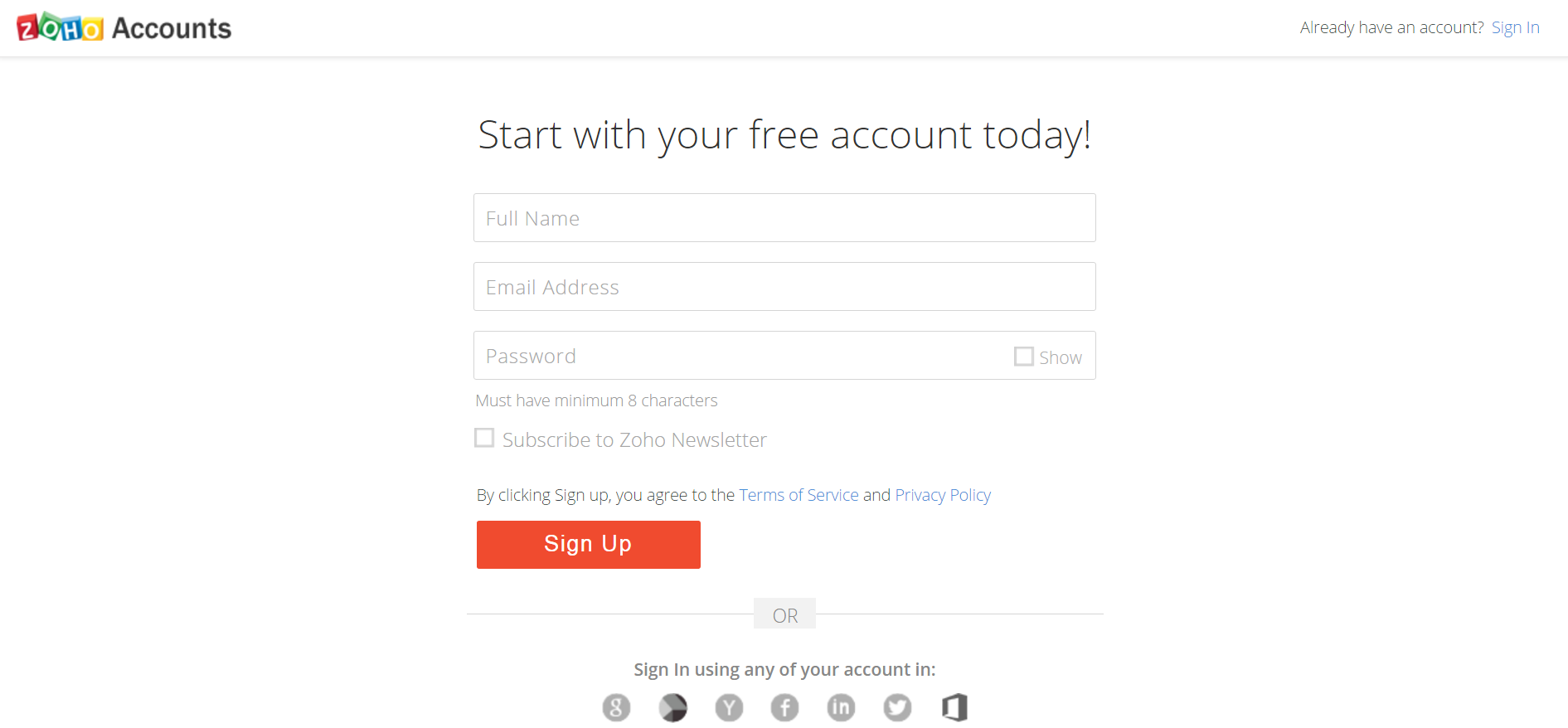
Step 2: Login into your Zoho account, if you don't have a Zoho account then register yourself on Zoho
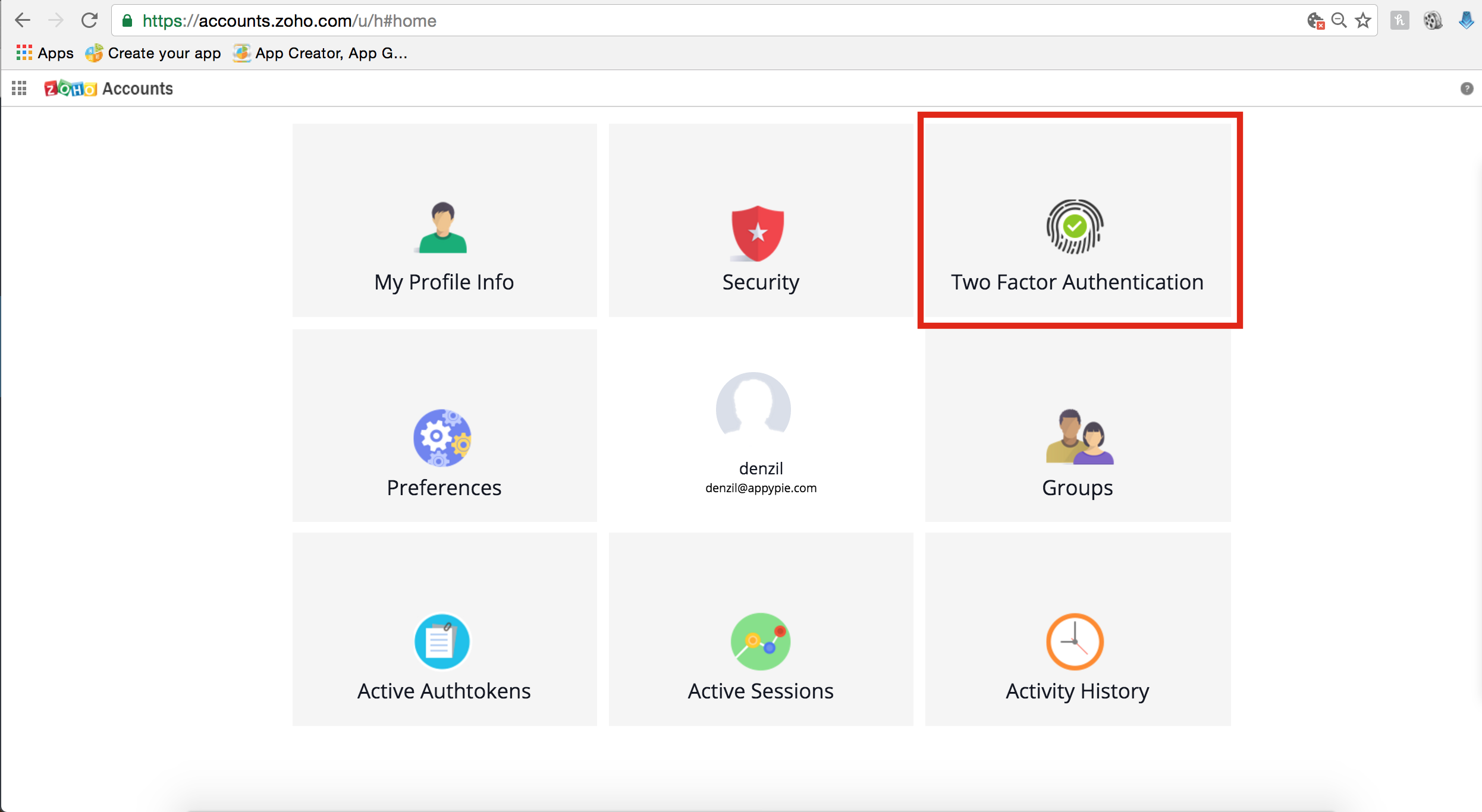
Step 3: In the Zoho Account Home page, click on Two Factor Authentication
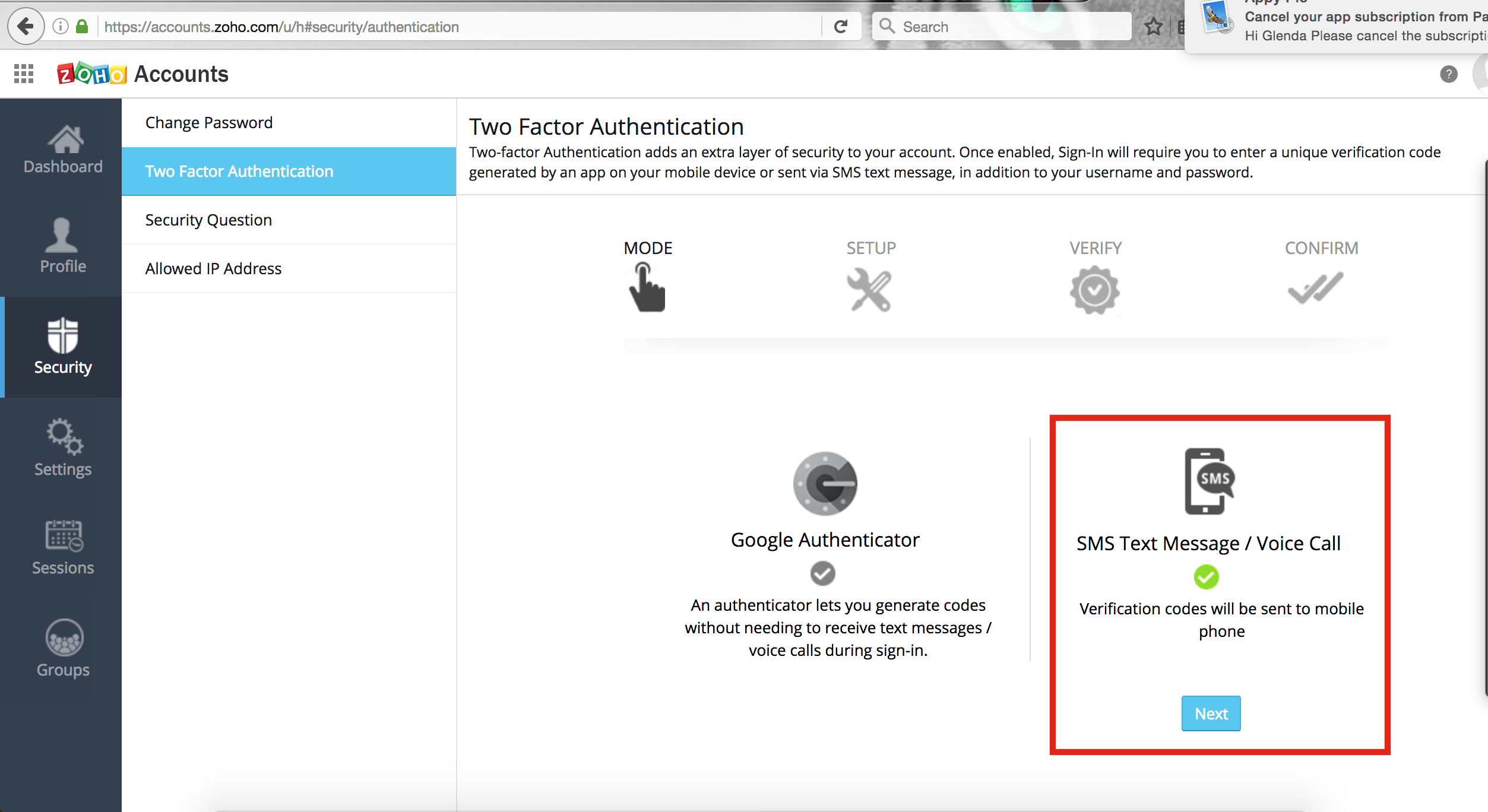
Step 4: Select SMS Text Message/Voice Call option to verify your contact number
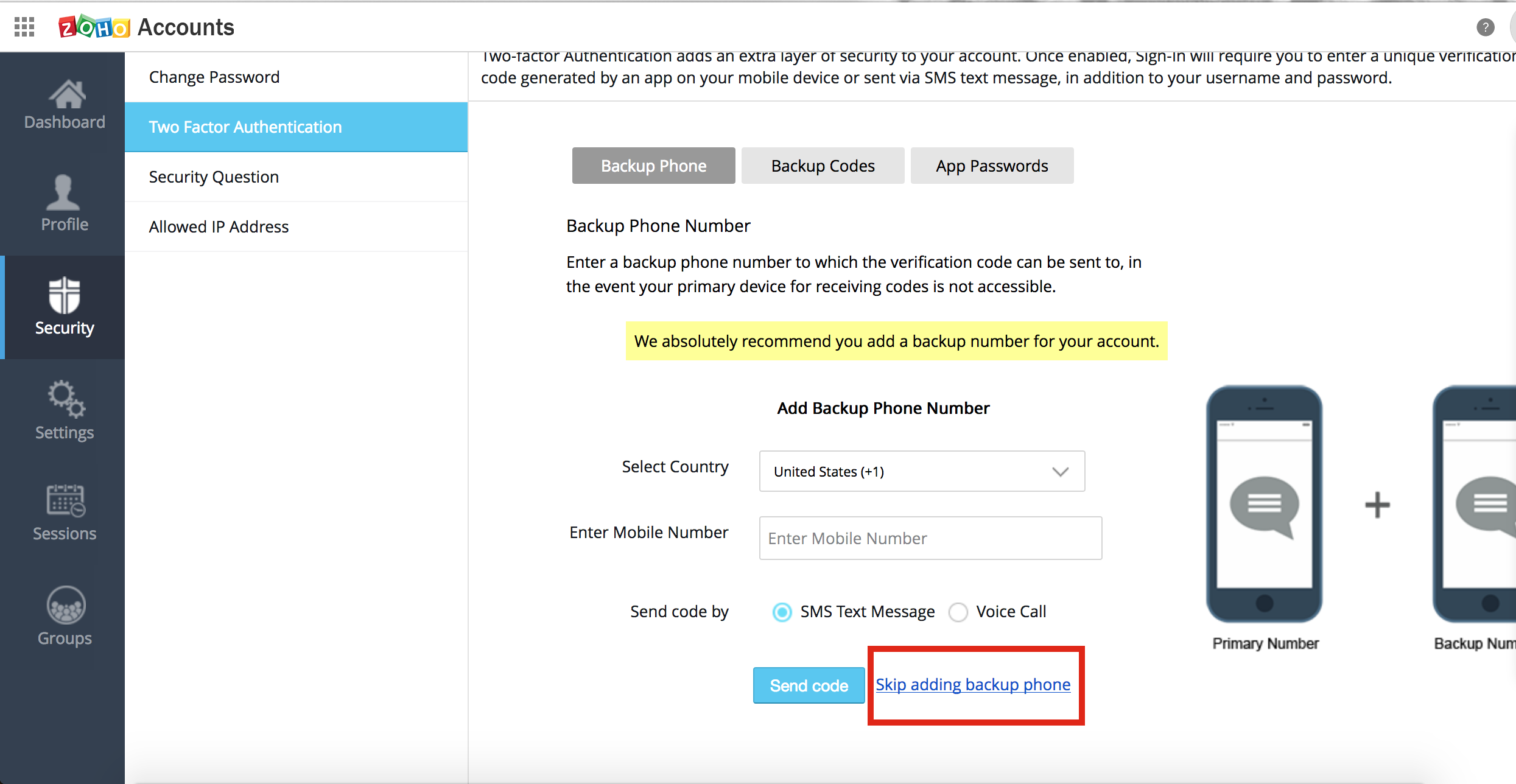
Step 5: Once you have successfully verified your contact number, you will redirected to Two Factor Authentication screen. If you want, you can add Backup Number, or you can click on Skip adding backup phone
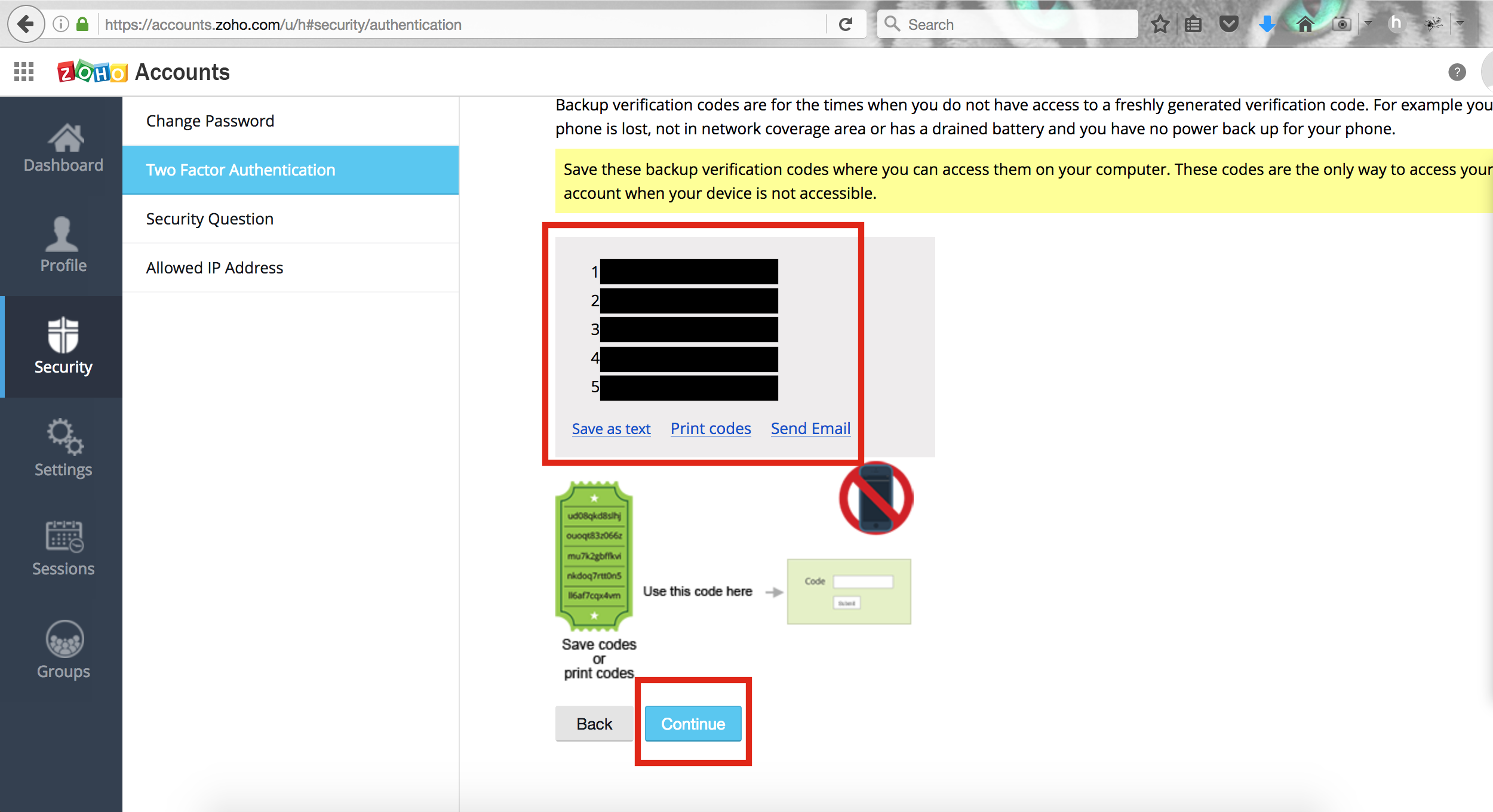
Step 6: Once you are on backup and recovery screen copy the verification codes and click on Continue
Note: Save these backup verification codes on your computer from where you can easily access them. These codes are the only way to access your account when your device is not accessible
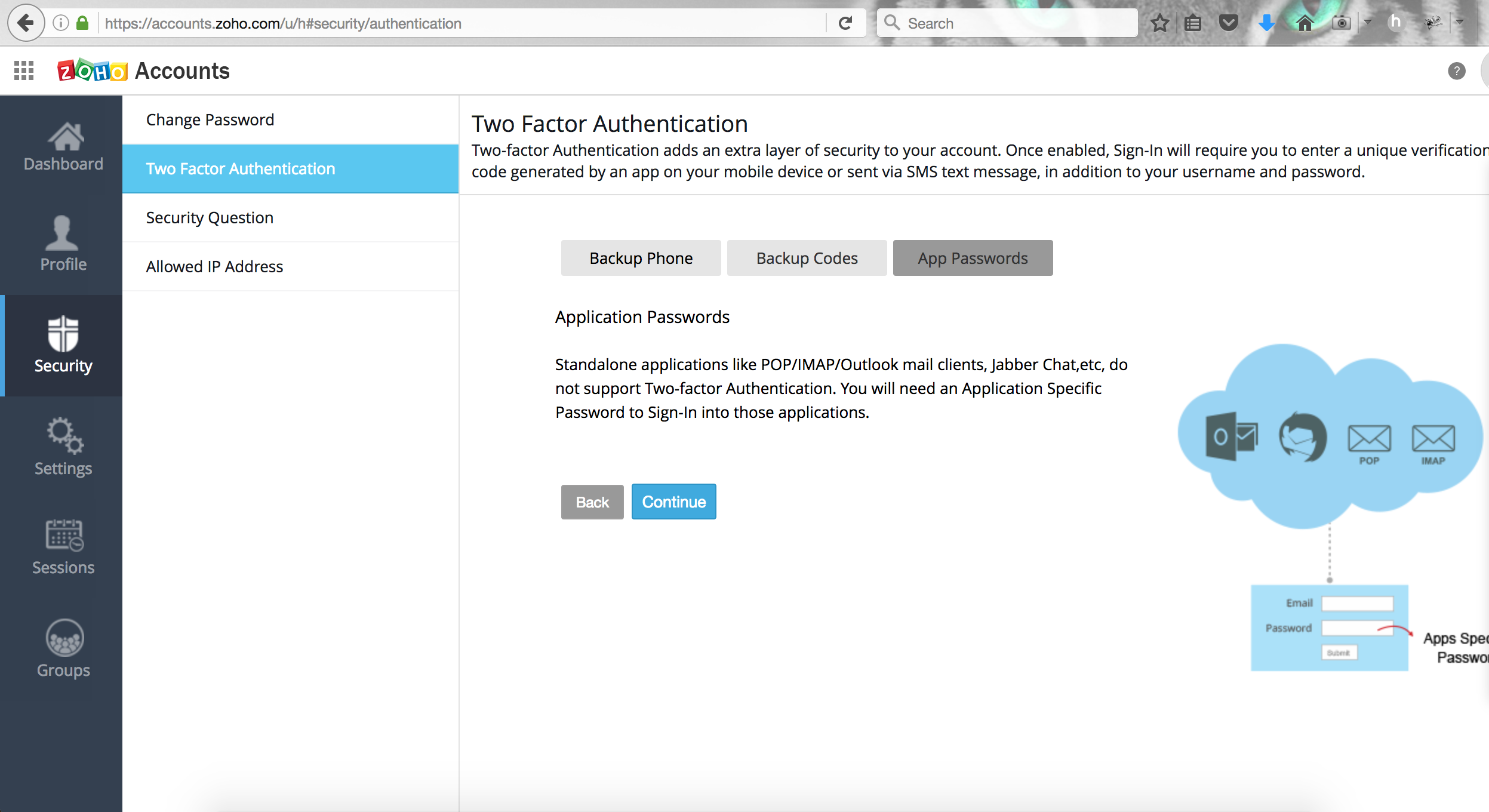
Step 7: In Application Password screen, click on Continue button
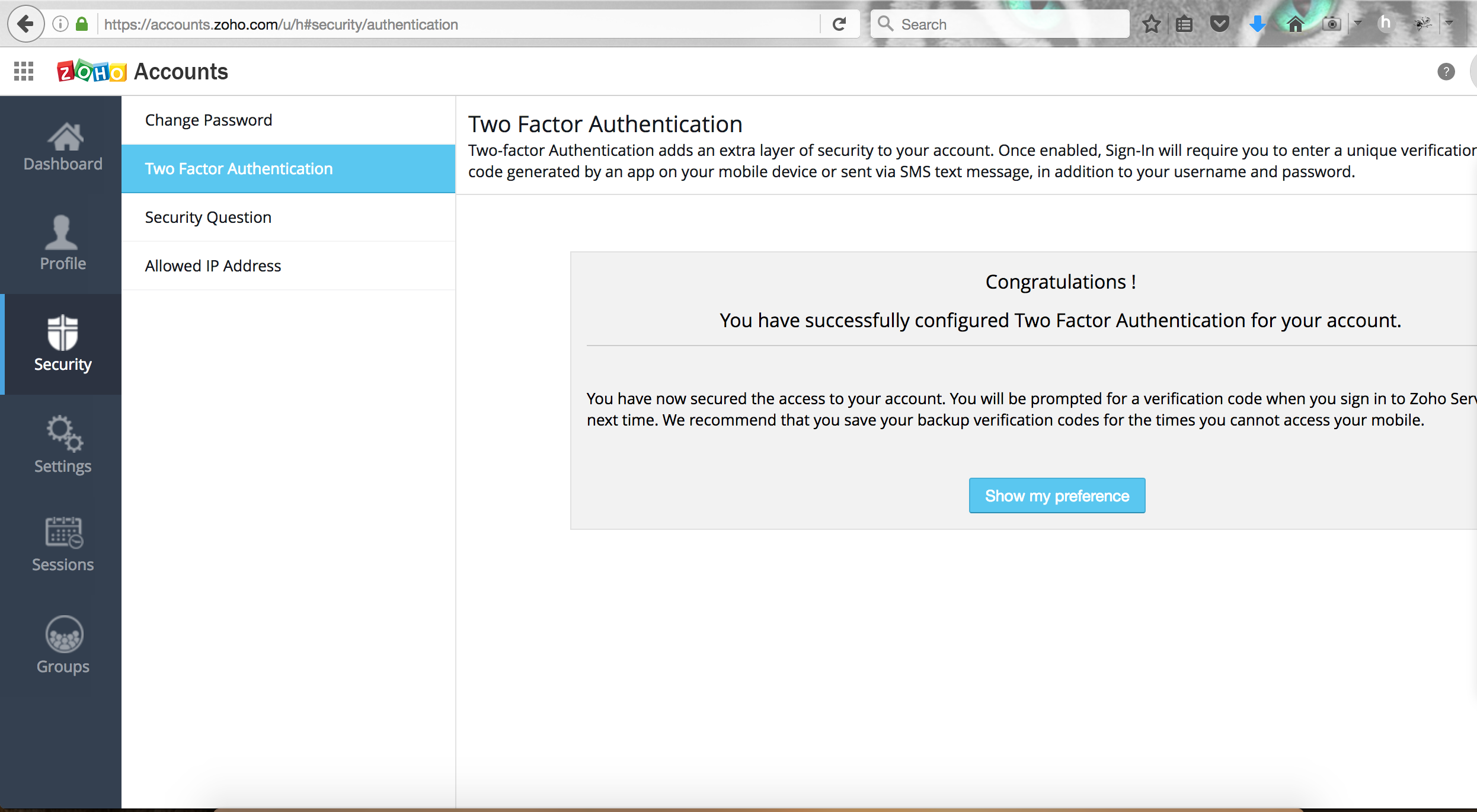
Step 8: Click on Show my preference
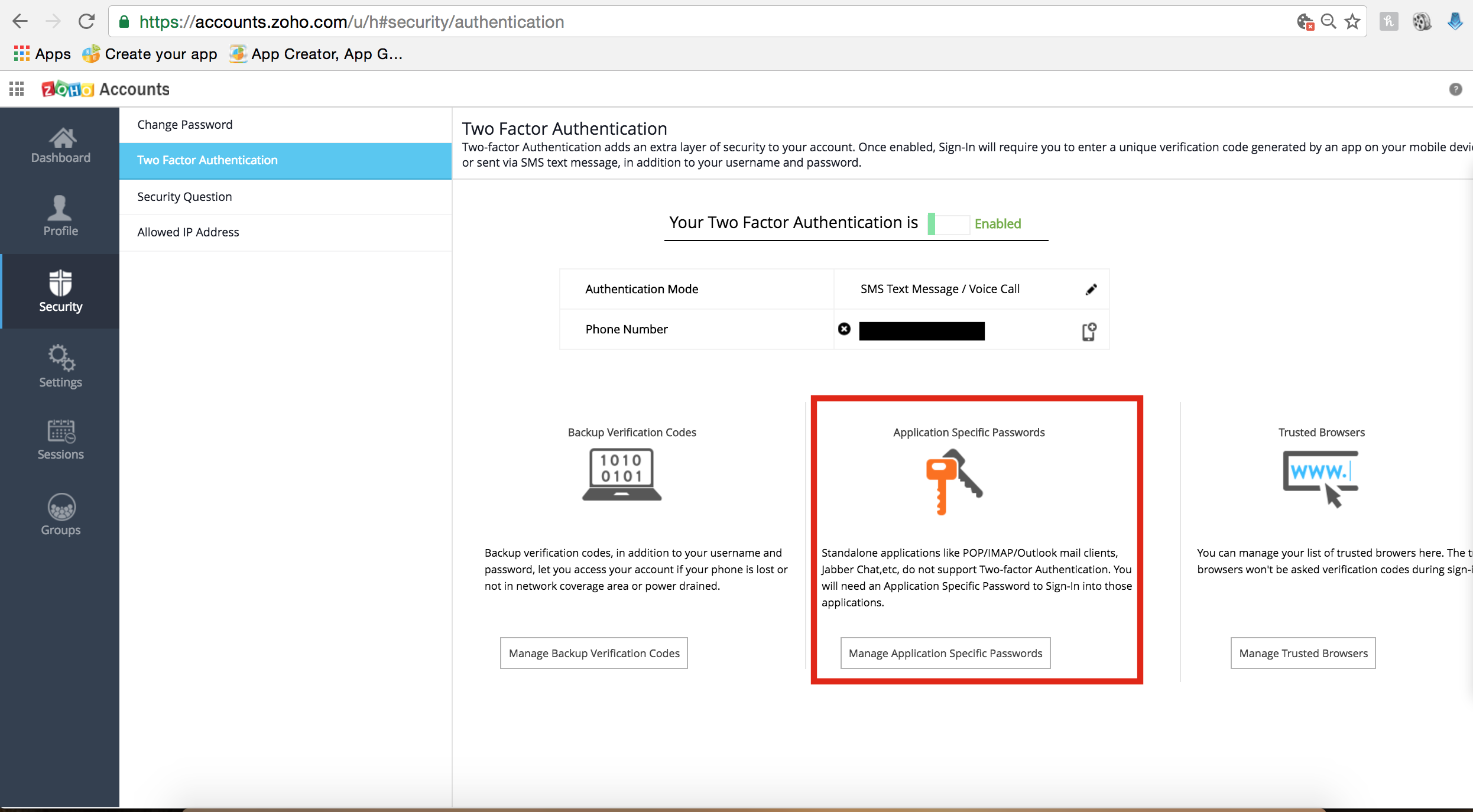
Step 9: Once again, you will be redirected to Two factor Authentication, here you have to click on Manage Application Specific Passwords to continue
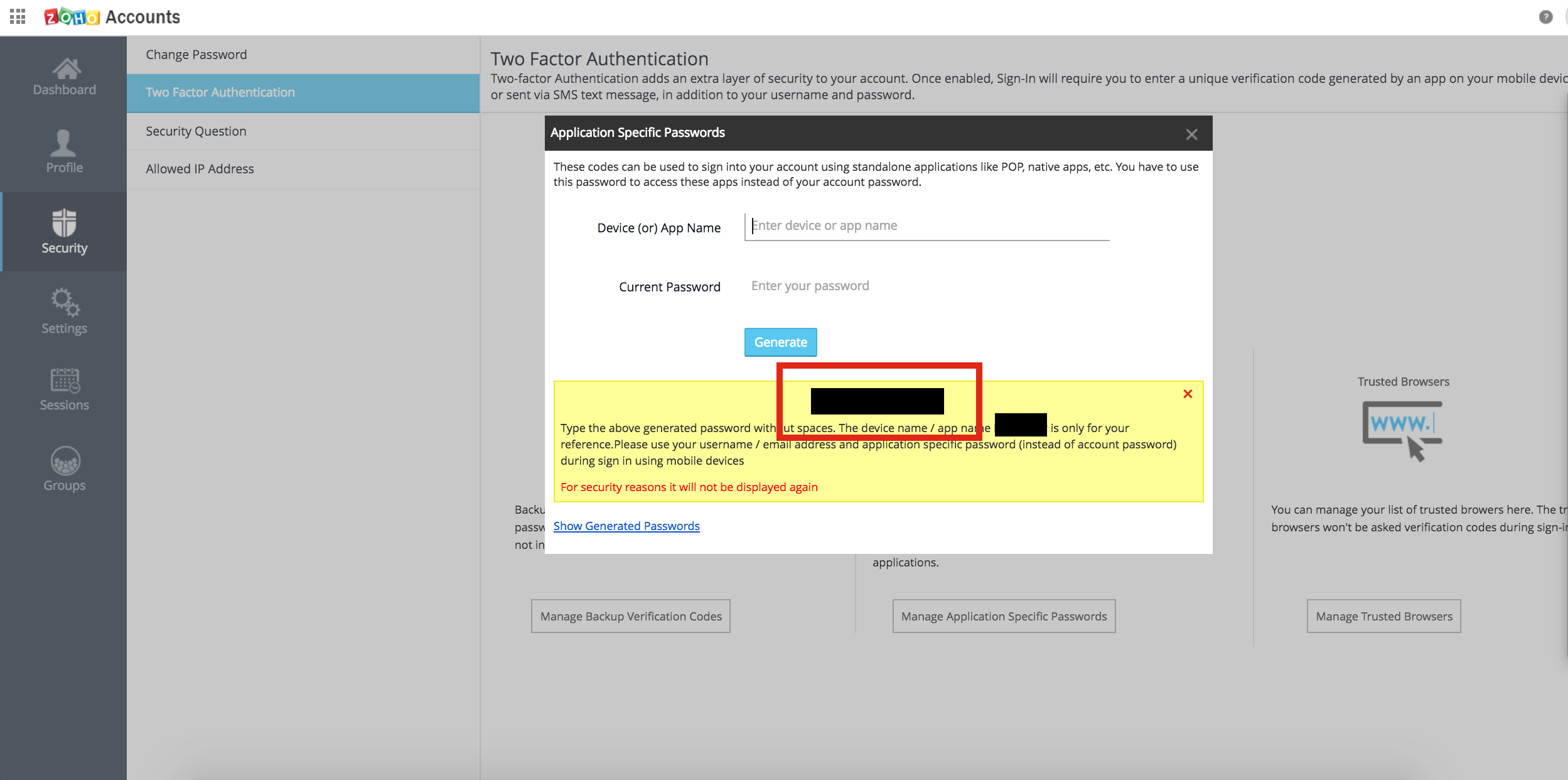
Step 10: Enter the Device or App Name and Current Password (of your zoho account) here, and click on Generate button. You will receive the new application-specific password with spaces
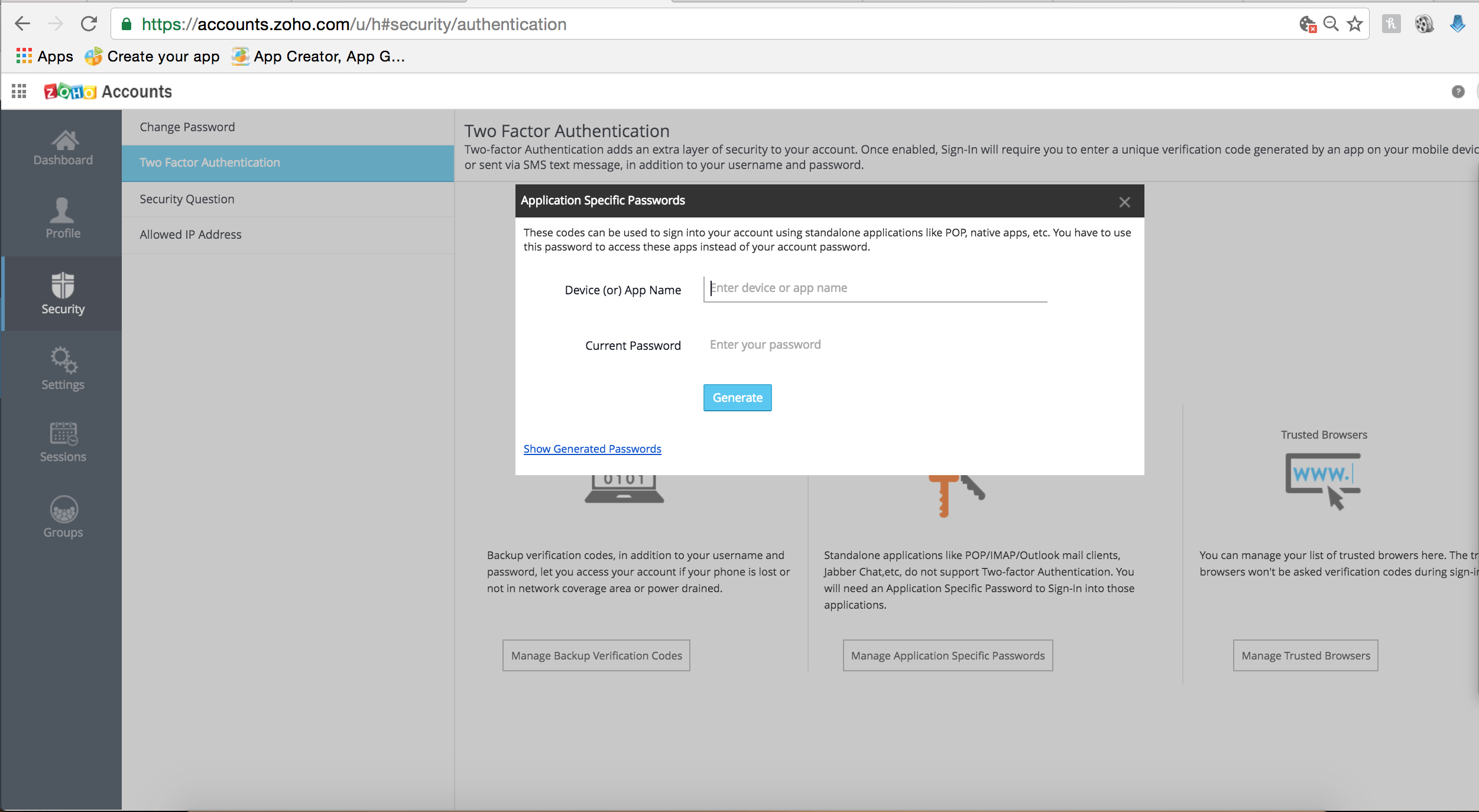
Step 11: Copy the verification code and replace it with “_your_verification_code_”. Now replace “_your_email_id_” with your zoho account Email ID, in the below mentioned URL:
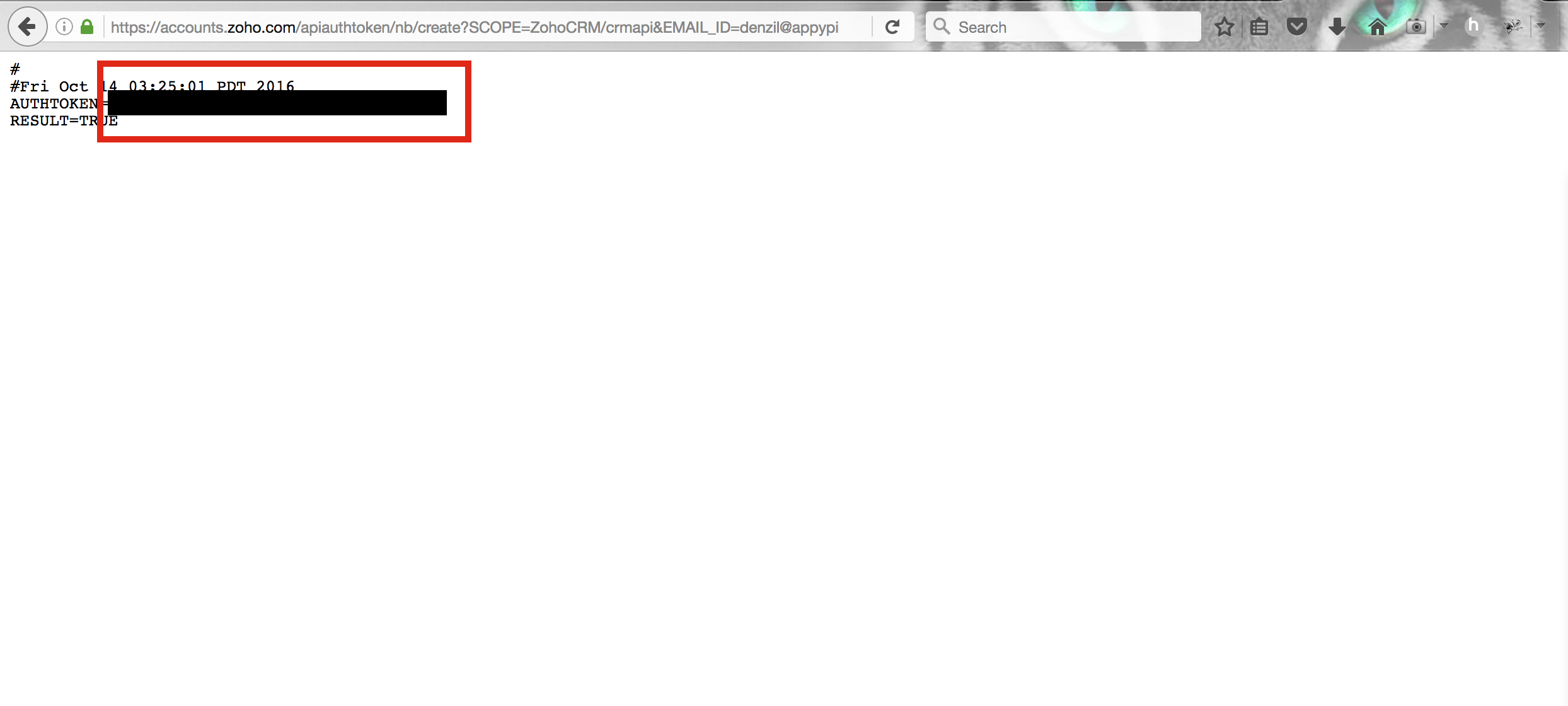
https://accounts.zoho.com/apiauthtoken/nb/create?SCOPE=ZohoCRM/crmapi&EMAIL_ID=_your_email_id_&PASSWORD=_your_verification_code_&DISPLAY_NAME=test
Step 12: Copy your Zoho Authentication Key and paste it into zoho CRM setting section of your Epik's app
Cet article a-t-il été utile
Cet article a-t-il été utile
Merci pour vos commentaires!
- S’inscrire
- Se connecter
